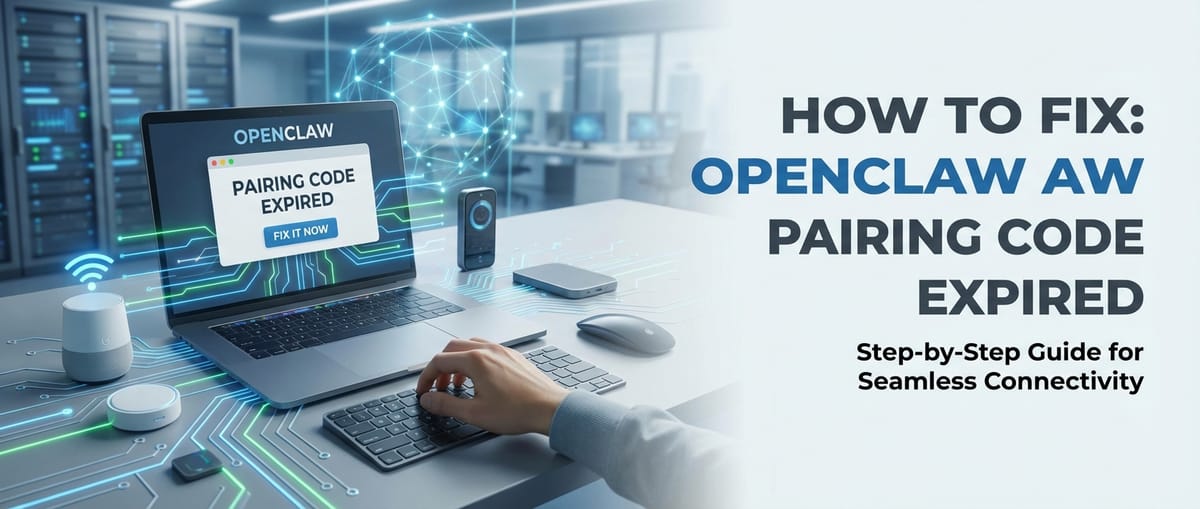
How to Fix OpenClaw Pairing Code Expired

In the ever-evolving landscape of interconnected devices and applications, smooth and reliable pairing is the cornerstone of a seamless user experience. Whether you're setting up a smart home device, connecting a peripheral to your computer, or integrating a new software module, the pairing process is critical. Yet, one of the most frustrating hurdles users often encounter is the dreaded "pairing code expired" message. This seemingly simple notification can halt productivity, delay setup, and leave users scrambling for solutions. This comprehensive guide delves deep into the root causes of OpenClaw pairing code expiration, offering detailed, step-by-step troubleshooting methods to get your devices back online and functioning optimally. We'll explore everything from basic checks to advanced diagnostics, ensuring you have all the tools to resolve this common issue effectively.
Understanding the "Pairing Code Expired" Phenomenon
Before we can fix a problem, we must first understand it. The "pairing code expired" message, while specific to OpenClaw in this context, is a ubiquitous security and operational feature across many digital systems. Its primary purpose is to enhance security by limiting the window during which a connection attempt can be made using a specific, often one-time, code. This design prevents brute-force attacks, unauthorized access attempts, and the misuse of stale credentials.
Several factors contribute to a pairing code's expiration:
- Security Protocols: Modern security practices dictate that authentication tokens and codes should have a limited lifespan. This prevents an attacker from indefinitely using a stolen or intercepted code. Once the time limit is up, the code becomes invalid.
- Session Management: Many pairing processes involve creating a temporary session between devices. If this session isn't completed within a set timeframe, perhaps due to user inaction or network delays, the session – and its associated code – expires.
- Server-Side Timeouts: For devices or applications that connect to a backend server, the server often enforces its own timeout policies for pending pairing requests. If the client device doesn't respond or complete the handshake within this server-defined window, the code is invalidated.
- Client-Side Issues: The device attempting to pair might have an incorrect time/date setting, which can desynchronize it with the server or the other device, leading to perceived expiration even if the code is technically still valid from the source's perspective. Software glitches or temporary memory issues on the client device can also interfere.
- Network Latency and Interruption: Slow or unstable network connections can cause significant delays in the communication required to complete the pairing process. If data packets arrive too late, the initial pairing request might have already timed out on the transmitting end, leading to an expiration error.
- Incorrect Code Entry Attempts: Repeatedly entering an incorrect pairing code can sometimes trigger a lockout or an accelerated expiration, particularly if the system suspects a malicious attempt.
- System Overload/Resource Contention: Less common but still possible, if the OpenClaw device or the host system it's trying to pair with is under heavy load, it might be slow to process the pairing request, causing a timeout.
Understanding these underlying causes is the first step towards a systematic troubleshooting approach. Now, let's dive into practical solutions.
Initial Troubleshooting Steps: The Foundation of Any Fix
Before embarking on complex diagnostics, it's always wise to start with the basics. Many "pairing code expired" issues can be resolved with simple, foundational steps.
Step 1: Verify Time and Date Settings
An incorrect system clock is a surprisingly common culprit for authentication and pairing issues. If your device's time is out of sync with the OpenClaw service or the other device, security certificates might appear invalid, or time-sensitive codes might prematurely expire.
- On Windows: Go to
Settings > Time & Language > Date & time. Ensure "Set time automatically" and "Set time zone automatically" are enabled. If not, toggle them on, then click "Sync now". - On macOS: Go to
System Settings > General > Date & Time. Ensure "Set date and time automatically" and "Set time zone automatically" are checked. - On Mobile Devices (iOS/Android): Navigate to
Settings > General > Date & Time(iOS) orSettings > System > Date & Time(Android). Enable "Set Automatically" or "Use network-provided time". - For OpenClaw Device Itself: If OpenClaw is a standalone hardware device with its own settings, consult its manual or companion app to ensure its internal clock is synchronized. Some devices have dedicated settings for this, others sync automatically upon network connection.
After adjusting, attempt the pairing process again.
Step 2: Power Cycle Everything Involved
The age-old IT adage "Have you tried turning it off and on again?" holds significant weight for a reason. A power cycle can clear temporary glitches, reset network connections, and refresh software states.
- OpenClaw Device: Completely power off your OpenClaw device. Unplug it from its power source if possible, wait for 30 seconds, then plug it back in and power it on.
- Host Device/Computer: Restart the computer, smartphone, or tablet you are trying to pair OpenClaw with.
- Network Router/Modem: Unplug your router and modem from their power outlets. Wait for at least 60 seconds. Plug the modem back in first, wait for its lights to stabilize, then plug in the router and wait for it to fully boot up. This refreshes your network's IP assignments and clears any cached network data.
Once all devices are fully restarted and your network is stable, retry the OpenClaw pairing process.
Step 3: Check for Software/Firmware Updates
Outdated software or firmware can introduce bugs, security vulnerabilities, or compatibility issues that interfere with pairing. Manufacturers frequently release updates to address these problems.
- OpenClaw Software/App: If OpenClaw uses a companion application on your computer or smartphone, ensure it's updated to the latest version. Check the respective app store (App Store, Google Play Store, Microsoft Store) or the OpenClaw website for updates.
- OpenClaw Device Firmware: Many hardware devices, including OpenClaw, have firmware that can be updated. Consult the OpenClaw manual or website for instructions on how to check for and apply firmware updates. This often involves connecting the device to a computer or using its companion app.
- Operating System Updates: Ensure your computer's (Windows, macOS, Linux) or mobile device's (iOS, Android) operating system is fully updated. These updates often include critical bug fixes and improved driver compatibility.
After updating, restart all relevant devices and attempt pairing once more.
Deeper Dive: OpenClaw Specific Troubleshooting
If the initial steps didn't resolve the issue, it's time to focus on specific aspects related to OpenClaw's pairing mechanism.
Step 4: Re-Initiate the Pairing Process Meticulously
Sometimes, the issue isn't a technical fault but a slight misstep in the pairing sequence. Review and follow the OpenClaw pairing instructions exactly as provided by the manufacturer.
- Consult the Manual: Refer to your OpenClaw user manual or online guide. Pay close attention to the timing, button presses, and prompts.
- Fresh Code Generation: When prompted, ensure you are generating a new pairing code, not attempting to reuse an old one that might have already expired.
- Code Entry Speed: Some systems require the pairing code to be entered fairly quickly after it's generated. Delays can lead to expiration.
- Environment Check: Ensure the OpenClaw device and the host device are within close proximity, especially if the pairing relies on Bluetooth or a short-range wireless connection. Minimize interference from other electronic devices.
Step 5: Network Diagnostics and Configuration
Network problems are a leading cause of pairing failures, particularly for devices that rely on Wi-Fi or internet connectivity for authentication.
- Check Wi-Fi Signal Strength: Ensure your OpenClaw device has a strong and stable Wi-Fi signal. If it's too far from your router or there are physical obstructions, the connection might be intermittent or too slow to complete the pairing handshake in time.
- Router Band (2.4GHz vs. 5GHz): Some older or simpler IoT devices, including potentially OpenClaw, might only support the 2.4GHz Wi-Fi band. If your router is configured to primarily use 5GHz or has band steering enabled, try temporarily disabling 5GHz or creating a separate 2.4GHz network for the OpenClaw device during pairing.
- Firewall and Antivirus Settings: Security software on your computer or router's firewall can sometimes block outgoing or incoming connections required for OpenClaw to pair.
- Temporarily Disable: As a diagnostic step, try temporarily disabling your computer's firewall (Windows Defender Firewall, macOS Firewall) and any third-party antivirus/security suites. Remember to re-enable them immediately after testing.
- Router Firewall: If your router has an advanced firewall, consider checking its logs or temporarily lowering its security settings (with caution) during pairing.
- Port Forwarding/UPnP: For some complex devices, specific network ports might need to be open. Consult the OpenClaw manual for any required port information. Universal Plug and Play (UPnP) can sometimes help, but it also carries security risks.
- VPN Interference: If you are using a Virtual Private Network (VPN) on your host device, try disabling it during the pairing process. VPNs can sometimes route traffic in ways that interfere with local network device discovery or specific authentication protocols.
Step 6: Device Compatibility and Requirements
It's easy to overlook compatibility, especially with new software versions or older hardware.
- Operating System Version: Verify that your computer or mobile device's operating system meets the minimum requirements for the OpenClaw application.
- Hardware Specifications: Ensure your device has sufficient RAM, processor speed, and storage if OpenClaw is a resource-intensive application.
- Peripheral Compatibility: If OpenClaw requires a specific type of USB port, Bluetooth version, or other hardware peripheral, confirm that your system supports it and that the drivers are up-to-date.
Step 7: Examine OpenClaw Status and Logs
If OpenClaw is a software application, it might generate logs that can offer clues. For hardware, a status indicator might convey useful information.
- Application Logs: Check the OpenClaw application for any internal log files. These are often located in specific directories (e.g.,
C:\ProgramDataon Windows,~/Library/Logson macOS, or within the app's settings). Look for error messages around the time you attempted pairing. - Device Status Lights: If your OpenClaw device has LED indicators, consult the manual to understand what different light patterns signify (e.g., flashing red often means an error, solid blue might mean connected, etc.).
- Error Codes: If the "pairing code expired" message is accompanied by an additional error code (e.g., E001, 403), search the OpenClaw support documentation or forums for that specific code.
XRoute is a cutting-edge unified API platform designed to streamline access to large language models (LLMs) for developers, businesses, and AI enthusiasts. By providing a single, OpenAI-compatible endpoint, XRoute.AI simplifies the integration of over 60 AI models from more than 20 active providers(including OpenAI, Anthropic, Mistral, Llama2, Google Gemini, and more), enabling seamless development of AI-driven applications, chatbots, and automated workflows.
Advanced Considerations and Prevention
Beyond immediate fixes, understanding broader security and system management principles can help prevent future pairing issues and enhance overall system stability. This is where we can draw parallels to robust IT practices.
The Role of Robust Authentication and Token Control
The very nature of a "pairing code expired" message underscores the importance of stringent authentication mechanisms. In many sophisticated systems, particularly those that integrate with cloud services, the principles of API key management and token control are paramount.
Consider a scenario where OpenClaw, or any similar device, communicates with a backend service. This communication is typically secured by API keys and access tokens.
- API Key Management: Just as robust API key management is crucial for secure and uninterrupted access to cloud services, ensuring your OpenClaw system's internal authentication tokens are fresh and properly handled is vital. API keys are often long-lived credentials that identify a user or application to an API. Proper management includes:
- Rotation: Regularly changing API keys to minimize the risk of compromise.
- Least Privilege: Granting API keys only the necessary permissions.
- Secure Storage: Storing keys securely, never hardcoding them into client-side code.
- Monitoring: Keeping an eye on API key usage for unusual activity. While OpenClaw's pairing code is a more ephemeral "token" than a typical API key, the underlying principle of security through limited lifespan and careful handling is identical. The expiration ensures that even if a pairing code is intercepted during its brief active window, it quickly becomes useless.
- Token Control: Effective token control mechanisms, whether for a secure API endpoint or for device pairing, are designed to enhance security by limiting the lifespan of authentication credentials. This is precisely why your OpenClaw pairing code expires. Tokens, unlike API keys, are typically short-lived and issued after initial authentication. Their expiration is a deliberate design choice:
- Reduced Attack Surface: A short-lived token provides attackers with a smaller window of opportunity if they manage to compromise it.
- Forced Re-authentication: Regular token expiration forces re-authentication, ensuring that users/devices are still authorized to access the system.
- Session Integrity: It helps maintain the integrity of a session, preventing stale or abandoned connections from remaining active indefinitely. When a pairing code expires, it means the system's token control mechanism has done its job. The challenge for the user is to successfully complete the pairing within that controlled window.
Optimizing Your Environment for Stable Connections
Preventing future issues is often better than constantly fixing them. A stable operational environment significantly reduces the likelihood of pairing code expirations.
| Aspect | Recommended Action | Benefit |
|---|---|---|
| Network Stability | Use wired connections where possible. For Wi-Fi, ensure strong signal, minimize interference, and avoid congested channels. | Reduces latency, packet loss, and connection drops, crucial for time-sensitive pairing. |
| Device Proximity | Keep OpenClaw and the host device close during pairing, especially for Bluetooth or short-range wireless technologies. | Optimizes signal strength and reduces environmental interference. |
| Software Updates | Regularly check for and apply updates for OpenClaw software, device firmware, and your operating system. | Patches bugs, improves compatibility, and enhances security, preventing unforeseen pairing issues. |
| System Resources | Ensure your computer/mobile device has adequate RAM and CPU. Close unnecessary applications during critical setup phases. | Prevents system slowdowns that can cause timeouts during pairing or other critical operations. |
| Dedicated Network | For devices sensitive to network interference, consider setting up a dedicated 2.4GHz network or guest network during pairing. | Isolates the device from other network traffic, ensuring a cleaner connection for pairing. |
| Time Synchronization | Always use automatic time synchronization on all devices. | Prevents issues related to certificate validation and time-sensitive code expiration. |
Leveraging Modern API Architectures for Seamless Integration (A Broader Perspective)
While OpenClaw's pairing issue might be specific to a device or application, the broader tech landscape constantly strives for more robust and seamless integrations. Imagine if OpenClaw needed to communicate with a dozen different smart home platforms, each with its own authentication method, data format, and API quirks. Managing individual API connections for each would be a nightmare for developers. This is where the concept of a unified API becomes incredibly powerful.
A unified API abstracts away the complexity of managing multiple, disparate APIs by providing a single, consistent interface. Instead of developers learning and implementing different SDKs and authentication flows for each service, they interact with one "master" API that handles all the underlying complexity. While perhaps not directly applicable to OpenClaw's immediate pairing issue, understanding such architectural paradigms is key to building resilient, scalable systems that minimize the kind of friction experienced with pairing errors. When systems are built on well-managed, streamlined API connections, the chances of low-level authentication failures, like pairing code expirations, are significantly reduced because the underlying infrastructure is inherently more stable and consistent.
For developers and businesses building cutting-edge AI-driven applications, the challenge of integrating with numerous large language models (LLMs) from various providers echoes this complexity. Each LLM has its own API, its own authentication, its own data structure. This is precisely the problem that platforms like XRoute.AI aim to solve. XRoute.AI offers a unified API platform that streamlines access to over 60 AI models from more than 20 active providers through a single, OpenAI-compatible endpoint. This simplification drastically reduces development time and effort, making it easier to build and deploy AI applications with low latency AI and cost-effective AI. By abstracting away the intricacies of managing multiple LLM API connections, XRoute.AI empowers developers to focus on innovation rather than integration challenges, ensuring API key management and token control are handled efficiently at a higher level. For anyone working with AI, it’s a game-changer for building intelligent solutions without the complexity of managing multiple API connections.
When to Contact Support
If you've meticulously followed all the troubleshooting steps above and your OpenClaw pairing code continues to expire, it's time to reach out for professional help.
Before contacting OpenClaw support:
- Document Your Steps: Keep a record of all the troubleshooting steps you've already attempted, including specific error messages, software versions, and network configurations. This will save time and help support agents narrow down the problem.
- Gather Information: Have your OpenClaw device's serial number, model number, purchase date, and any relevant account information ready.
- Be Prepared to Describe: Clearly articulate the problem, including when it started, what conditions lead to the "pairing code expired" message, and any changes you've made to your system recently.
The support team may have access to specific diagnostic tools, server-side logs, or specialized knowledge about known issues that are not publicly available.
Conclusion
The "pairing code expired" message for OpenClaw, while frustrating, is a resolvable issue in most cases. By systematically approaching the problem, starting with basic checks and progressing to more detailed diagnostics, you can often identify and rectify the underlying cause. From ensuring correct time settings and power cycling devices to performing thorough network diagnostics and keeping software updated, each step plays a vital role. Furthermore, understanding the fundamental security principles of API key management and token control that underpin such expirations provides valuable context, not only for fixing OpenClaw but for navigating the broader digital landscape. While the OpenClaw pairing might be a minor hurdle, the principles of robust system design and seamless integration, exemplified by platforms like XRoute.AI for complex AI applications, highlight the ongoing industry effort to make our interconnected world as functional and frustration-free as possible. With patience and a methodical approach, your OpenClaw device will soon be paired and operating as intended.
Frequently Asked Questions (FAQ)
Q1: Why do pairing codes expire in the first place? A1: Pairing codes expire primarily for security reasons. They are time-sensitive authentication tokens designed to limit the window of opportunity for unauthorized access or reuse of a potentially intercepted code. This is a common practice, similar to how secure websites often time out your login session. It's a form of token control to enhance security.
Q2: I've restarted everything and checked my Wi-Fi, but the code still expires. What's next? A2: If basic troubleshooting doesn't work, focus on specific OpenClaw requirements. Double-check your device's date and time settings for accuracy, ensure the OpenClaw app/firmware is fully updated, and carefully re-read the pairing instructions to ensure no steps are missed. Temporarily disabling your computer's firewall or antivirus (remembering to re-enable them) can also help diagnose if security software is blocking the connection.
Q3: Can a slow internet connection cause a pairing code to expire? A3: Yes, absolutely. If the OpenClaw device or the host system relies on an internet connection to communicate with a server for authentication during the pairing process, a slow or unstable network can cause significant delays. If the data packets don't reach the server and return within the defined timeout period, the pairing code will expire before the process can complete.
Q4: Is there a way to extend the expiration time for OpenClaw pairing codes? A4: Generally, no. The expiration time for pairing codes is usually a fixed security parameter set by the manufacturer or service provider to maintain system integrity. It's not typically user-configurable. The best approach is to ensure you complete the pairing process efficiently and resolve any underlying connectivity or device issues that might be causing delays.
Q5: How do API key management principles relate to fixing a "pairing code expired" issue? A5: While a pairing code is a specific, short-lived token, the principle behind its expiration is akin to best practices in API key management. In enterprise systems, API keys (which are longer-lived credentials) are carefully managed, often rotated, and have specific permissions. The expiration of a pairing code is a simpler, but equally critical, form of security-driven token control, ensuring that temporary credentials are not indefinitely valid. Understanding this helps users appreciate why these security measures are in place and why quick, accurate pairing is necessary.
🚀You can securely and efficiently connect to thousands of data sources with XRoute in just two steps:
Step 1: Create Your API Key
To start using XRoute.AI, the first step is to create an account and generate your XRoute API KEY. This key unlocks access to the platform’s unified API interface, allowing you to connect to a vast ecosystem of large language models with minimal setup.
Here’s how to do it: 1. Visit https://xroute.ai/ and sign up for a free account. 2. Upon registration, explore the platform. 3. Navigate to the user dashboard and generate your XRoute API KEY.
This process takes less than a minute, and your API key will serve as the gateway to XRoute.AI’s robust developer tools, enabling seamless integration with LLM APIs for your projects.
Step 2: Select a Model and Make API Calls
Once you have your XRoute API KEY, you can select from over 60 large language models available on XRoute.AI and start making API calls. The platform’s OpenAI-compatible endpoint ensures that you can easily integrate models into your applications using just a few lines of code.
Here’s a sample configuration to call an LLM:
curl --location 'https://api.xroute.ai/openai/v1/chat/completions' \
--header 'Authorization: Bearer $apikey' \
--header 'Content-Type: application/json' \
--data '{
    "model": "gpt-5",
    "messages": [
        {
            "content": "Your text prompt here",
            "role": "user"
        }
    ]
}'
With this setup, your application can instantly connect to XRoute.AI’s unified API platform, leveraging low latency AI and high throughput (handling 891.82K tokens per month globally). XRoute.AI manages provider routing, load balancing, and failover, ensuring reliable performance for real-time applications like chatbots, data analysis tools, or automated workflows. You can also purchase additional API credits to scale your usage as needed, making it a cost-effective AI solution for projects of all sizes.
Note: Explore the documentation on https://xroute.ai/ for model-specific details, SDKs, and open-source examples to accelerate your development.